
Categories page overview
This article gives you a guided tour of the Categories page in Xada and explains how to read the table, use the filters, and get to the places where you can edit or review your categories.
What the Categories page is for
- See all categories in your account in one place.
- Check status at a glance – which categories are active, which are not.
- Review key details like where a category sits in your structure, how many products use it, and when it was created.
- Jump into editing a category or opening the category structure view.
How to get to the Categories page
- Open Xada and sign in.
- In the left‑hand menu, click Categories.
- You’ll land on the Categories list with a table of all your categories.
- Structure – opens the category structure view.
- Create Category – starts a new category.
- A dropdown such as “50 per page” – controls how many rows you see at once.
Understanding the table
- ID: An internal number used to identify the category. Helpful when you’re talking to support or matching data from exports.
- Name: The category’s name as it appears in Xada. This is for reference on this screen; you edit it via the Manage button.
- Structure: Shows where the category sits in your hierarchy (for example, “Location / Perth”). The pill in this column is clickable and is your way into the structure view for that category.
- Products: A simple count of how many products are assigned to that category.
- Source: Tells you where the category came from (for example, created in Xada or coming from an external feed, depending on your setup).
- Rules: Shows how many rules (if any) are linked to that category.
- Favourite: Lets you quickly see which categories you’ve flagged as favourites.
- Created: The date the category was first created in Xada.
- Active: Shows whether the category is currently active or inactive. This can be used as a quick status check when you’re auditing your categories.
- Manage: A button with an edit icon. Click this to open the Edit Category page where you can change the category’s details, status, image, SEO fields, and so on.
Sorting and filtering categories
Sorting
- Click on a column header (for example Name, Products, Created, Active) to sort by that column.
- Click again to reverse the order (ascending/descending).
Column filters
Under many column headings you’ll see a small filter icon. Clicking this opens a filter panel for that column. For example:
- Filter Name if you only want to see categories containing a particular word.
- Filter Source if you want to focus on categories from a particular source.
- Filter Active to show only active or only inactive categories.
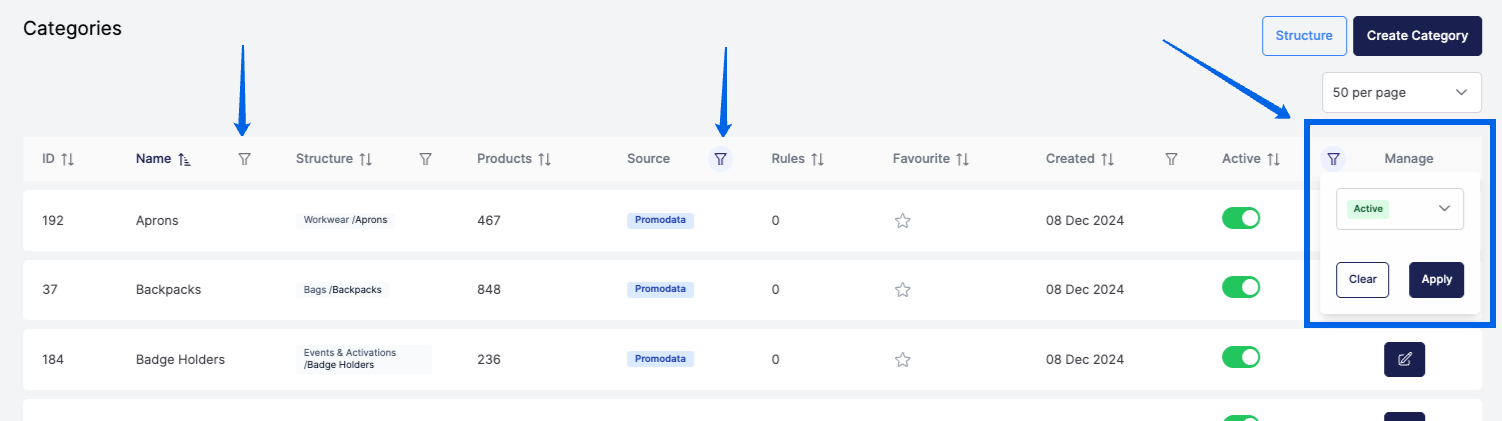
By combining sorting and filters you can, for example:
- See all inactive categories created in the last few months.
- Focus on categories that currently have zero products assigned.
- Review categories from a particular source.
Moving from the list into editing or structure
From the Categories page you have two main next steps:
Edit a category’s details
- Click the Manage button in that row.
- This opens the Edit Category screen where you can change the name, description, image, SEO fields, visibility, and more.
Review the category’s place in the structure
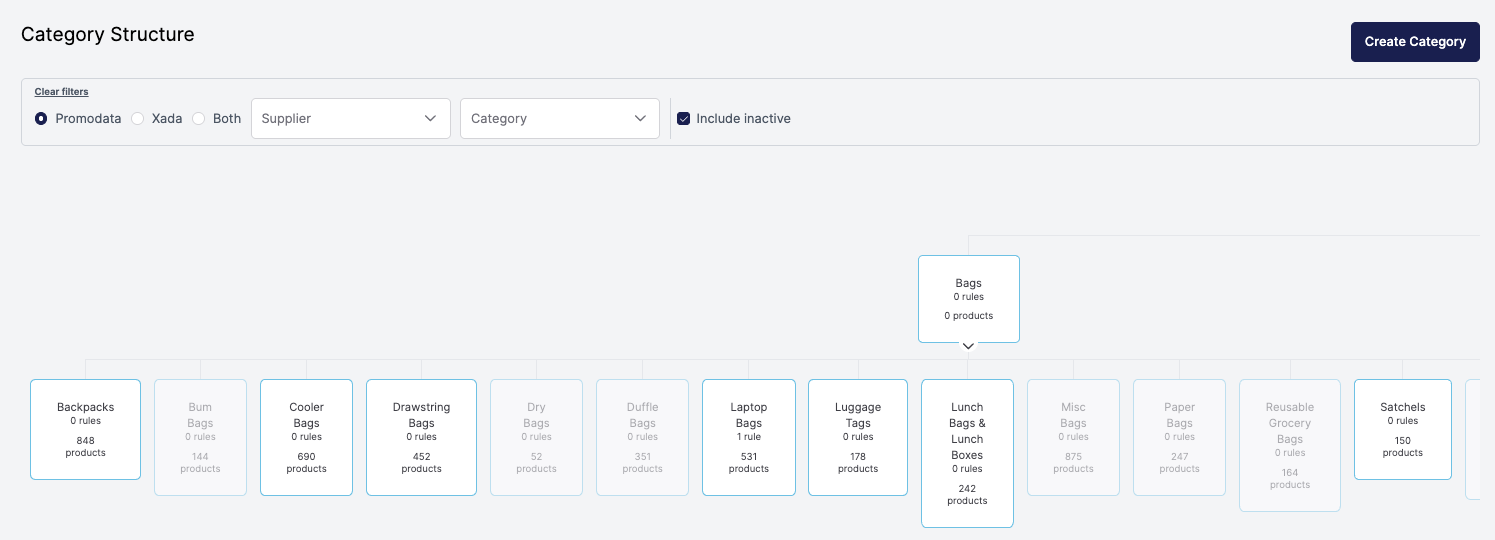
- Click the Structure pill in that row, or use the Structure button at the top of the page.
- This opens a structure view where you can see parent/child relationships and how the category fits into the wider hierarchy.
When to use this page
Use the Categories page when you want to:
- Get a high‑level overview of all categories.
- Quickly find and edit a specific category using sorting and filters.
- Audit which categories are active, which are unused, and which are favourites.
- Jump into the structure view or edit screen from a single, consistent starting point.