
Suppliers Page Overview
The Suppliers page displays all available suppliers in your Xada instance, including those from supplier feeds and any custom suppliers you have imported.
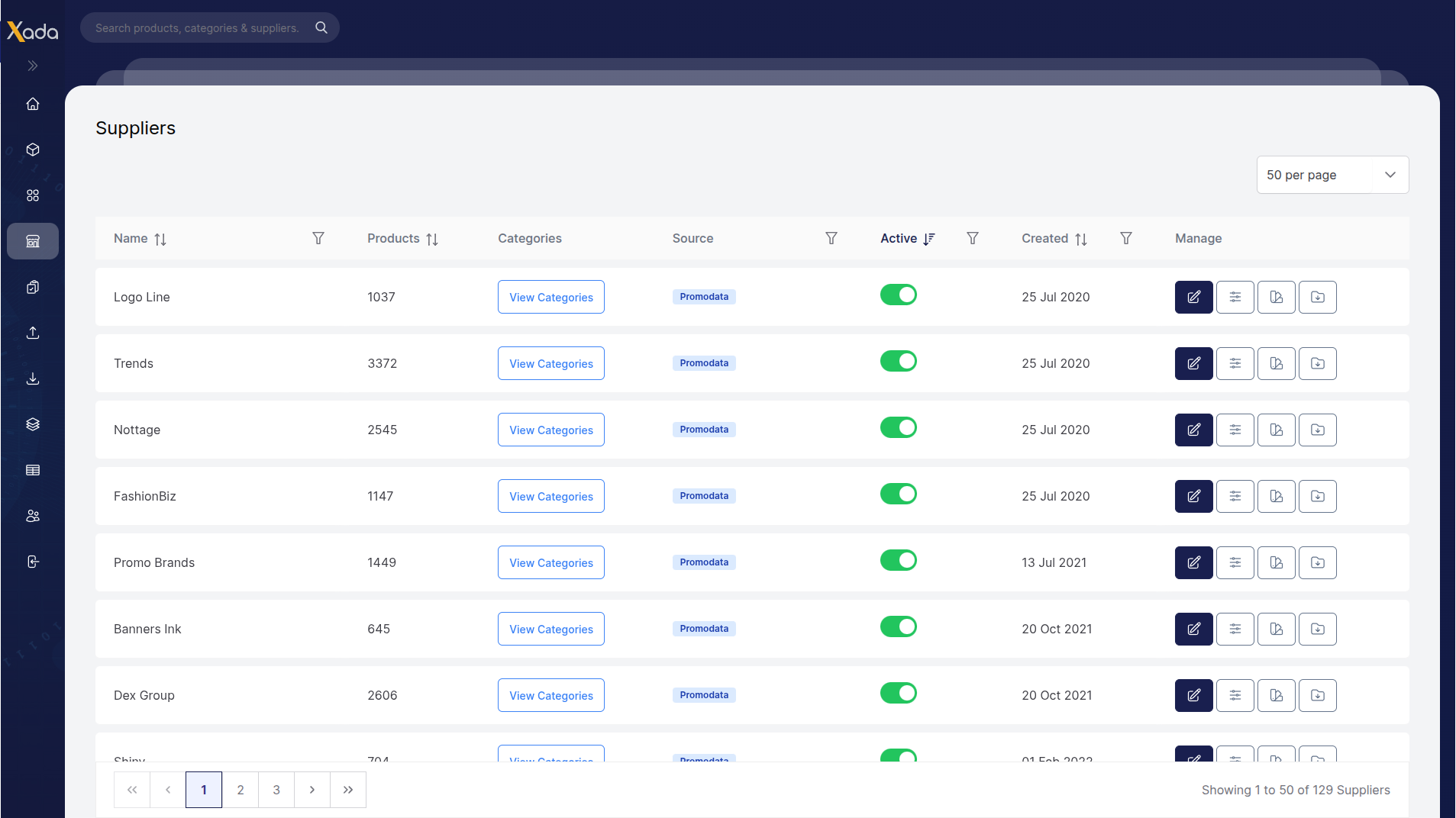
The table provides key information that can be filtered and sorted, including:
- Supplier name
- Data source (e.g. supplier feed such as Promodata)
- Date created
- Number of associated products
- Active status
Activating a Supplier
Enabling a supplier is the first step in making their products available on your website.
To activate a supplier:
- Locate the supplier in the table
- Toggle the switch in the Active column
Note:
If you deactivate a supplier that is currently active, all of its products will be removed from your website during the next export.
Renaming a Supplier
You can rename suppliers that you have manually imported into Xada.
- Click the Edit button on the right-hand side of the table
- Update the supplier name as required
Suppliers provided via a supplier feed cannot be renamed.
Viewing a Supplier’s Categories
Click the View Categories button to open the Category Structure page with the selected supplier pre-filtered.
This is useful for:
- Reviewing how a supplier’s categories are structured
- Comparing category trees across suppliers
- Enabling categories for specific suppliers only
Supplier CSV Files
Each supplier’s product data is managed through separate CSV files.
For more information, refer to the Suppliers CSV Files article in the related resources below.