
Applying Pricing Markup Rules
Markup rules in Xada are used to transform supplier cost pricing into your storefront sell prices. Instead of managing pricing product by product, markup rules allow you to apply pricing logic at scale, ensuring consistent margins across suppliers, categories, or your entire catalogue.
Once configured, markup rules automatically calculate sell prices for all matched products, significantly reducing ongoing pricing maintenance.
Why Markup Rules Are Required
To sync products to your website, they must have a markup applied. Xada prevents products without markup from syncing to ensure that cost prices are never exposed.
Important:
This requirement only applies to options or additions that originate from a supplier data feed (e.g. Promodata). Manually created options and additions are not affected.
How Markup Rules Work
All markup calculations are based on the original data.
Example:
If a supplier provides a price of $50 and you manually update it to $80, the markup rule will still apply to the original $50.
This ensures:
- Supplier data remains the single source of truth
- Pricing logic remains consistent and predictable
Creating a Markup Rule
- Go to the Rules page
- Review or clone an existing markup rule (recommended)
- Rename the rule clearly
- Define your conditions
Common Approach
Start with a supplier-based rule, for example:
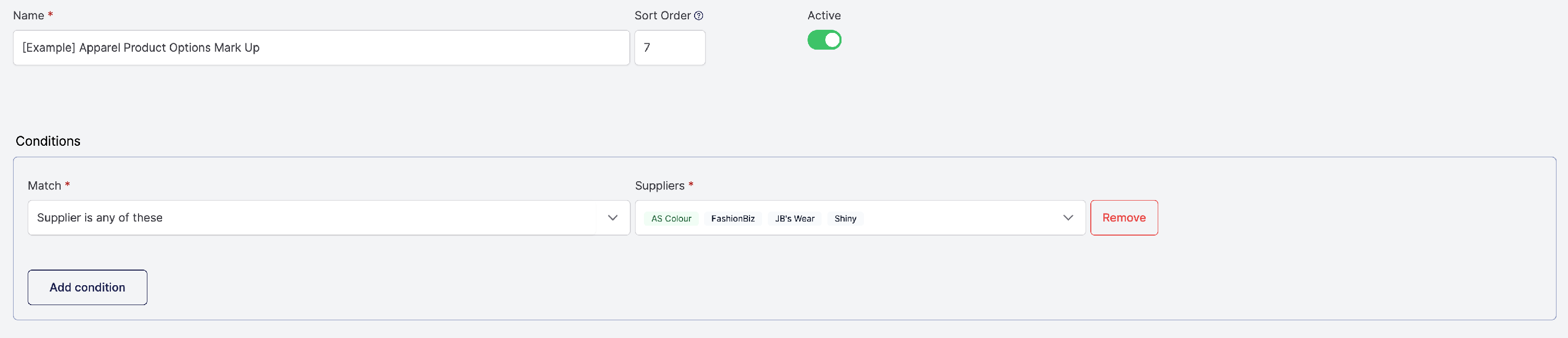
This acts as a blanket pricing rule during onboarding. You can later refine rules further using:
- Categories
- Product types
- Other conditions
Understanding Quantity Break Pricing
Supplier pricing is typically structured around quantity breaks (tiers based on order volume).
- Price 1 → Lowest quantity (MOQ)
- Price 2, 3, etc. → Higher volume tiers
Markup rules interact with each price break independently, meaning:
- Each tier has its own cost
- Each tier can have its own markup logic
Understanding this structure is critical before applying pricing rules.
Configuring Markup Actions
In the Actions section of your rule:
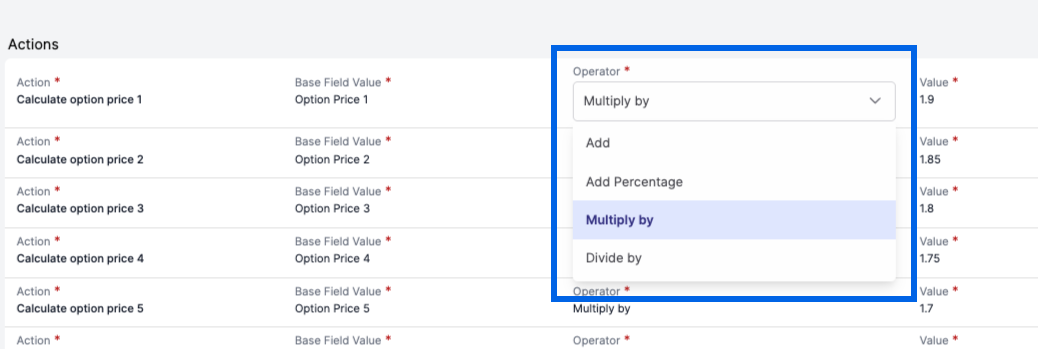
- Select Calculate option price 1
- Set Base Field Value to Option Price 1
- Choose an operator (e.g. multiply, percentage, divide)
- Enter your value (e.g. 1.9 for a multiplier)
Repeat this for additional price tiers (Price 2, Price 3, etc.).

Using Operators for Pricing
Xada supports multiple operators to calculate sell prices:
- Multiplier (e.g. ×1.9) → Most common, ensures consistent margins
- Percentage-based adjustments
- Division or fixed adjustments
Multipliers are typically preferred as they provide predictable margin control across all products.
Creating Cascading Discounts
Markup rules can also be used to create cascading discounts across quantity breaks.
For example:
- Price 1 → Higher markup (lower volume)
- Price 2+ → Reduced markup (higher volume)
This allows:
- Competitive bulk pricing
- Stronger margins at lower quantities
Once configured, this pricing structure is applied consistently across all matched products.
Handling Missing Price Breaks
It is common for suppliers to provide only a single price (e.g. Price 1).
In this case, you can still create additional quantity breaks using rules:
- Add multiple actions for each price tier (Price 2, Price 3, etc.)
- Always use Option Price 1 as the base field
- Apply your markup logic to generate the additional pricing tiers
This allows you to build a complete pricing structure even when limited supplier data is available.
Applying Markups to Additions
Markup rules are not limited to product options - they can also be applied to additions using the same process.
It is recommended to create a separate rule for additions, as this makes pricing easier to manage and maintain over time.