How can I quickly see which categories are active?
Xada now makes it easier to identify category sources and active category status directly within category selectors.
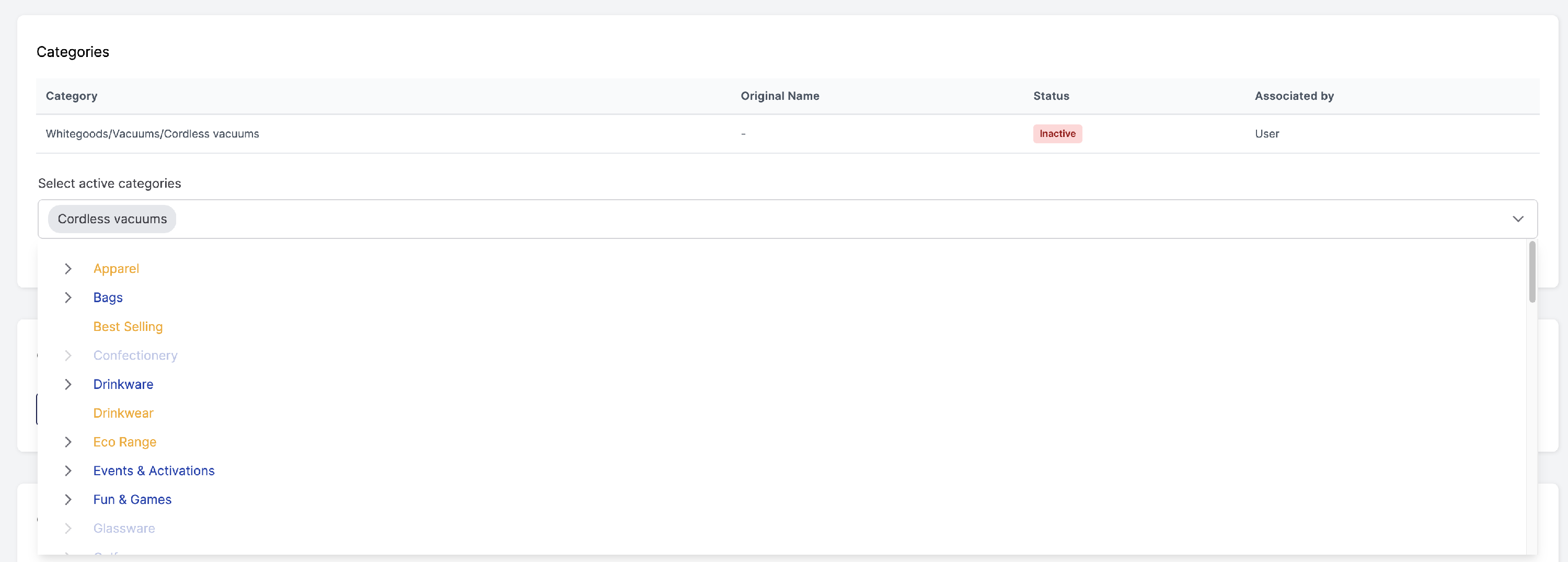
Category dropdowns throughout Xada use colour coding so you can quickly see whether it is active or inactive.
What do the category colours mean?
The category colours are:
Blue: Promodata category
Orange: Xada category
Greyed out: Inactive category
This colour scheme matches the Category Structure page, making it consistent across Xada.
Where can I see this?
You can see the updated category colours in category dropdowns throughout Xada, including:
- Product category selectors
- Category association areas
- Create Category parent category selector
- Rules that relate to categories
How does this work with rules?
The biggest improvement is available in rule conditions that use categories, such as:
- Category is any of these
- Category is none of these
When one of these conditions is selected, the category selector shows the category tree with the same colour coding.
This helps you quickly identify whether the categories you are selecting are Promodata categories, Xada categories or inactive categories.