
How can I set variant SKUs without creating separate products?
You can assign unique SKUs to each variant of a product (such as different sizes or colours) without needing to create separate products. This allows you to manage all variations under a single product while still maintaining distinct SKUs for inventory, integrations and reporting.
If a product comes in multiple colours and sizes, you can assign a unique SKU to each size–colour combination. This can be done by entering a specific, unique value in the SKU field for each variant on the Edit Product page. If the SKU field is left blank, Xada will automatically generate a SKU when the product is exported to the storefront. This approach allows you to manage all variants under a single product while ensuring each combination has a unique SKU.
Important Note: Variant SKUs cannot currently be set or modified using rules. If you wish to edit the variant SKU for multiple products, you can do this in bulk via CSV import, using the "New Variant SKU" column.
How to Set Variant SKUs in Bulk
The recommended method for assigning or updating variant SKUs in bulk is via CSV import.
Step 1: Export the product variants CSV.
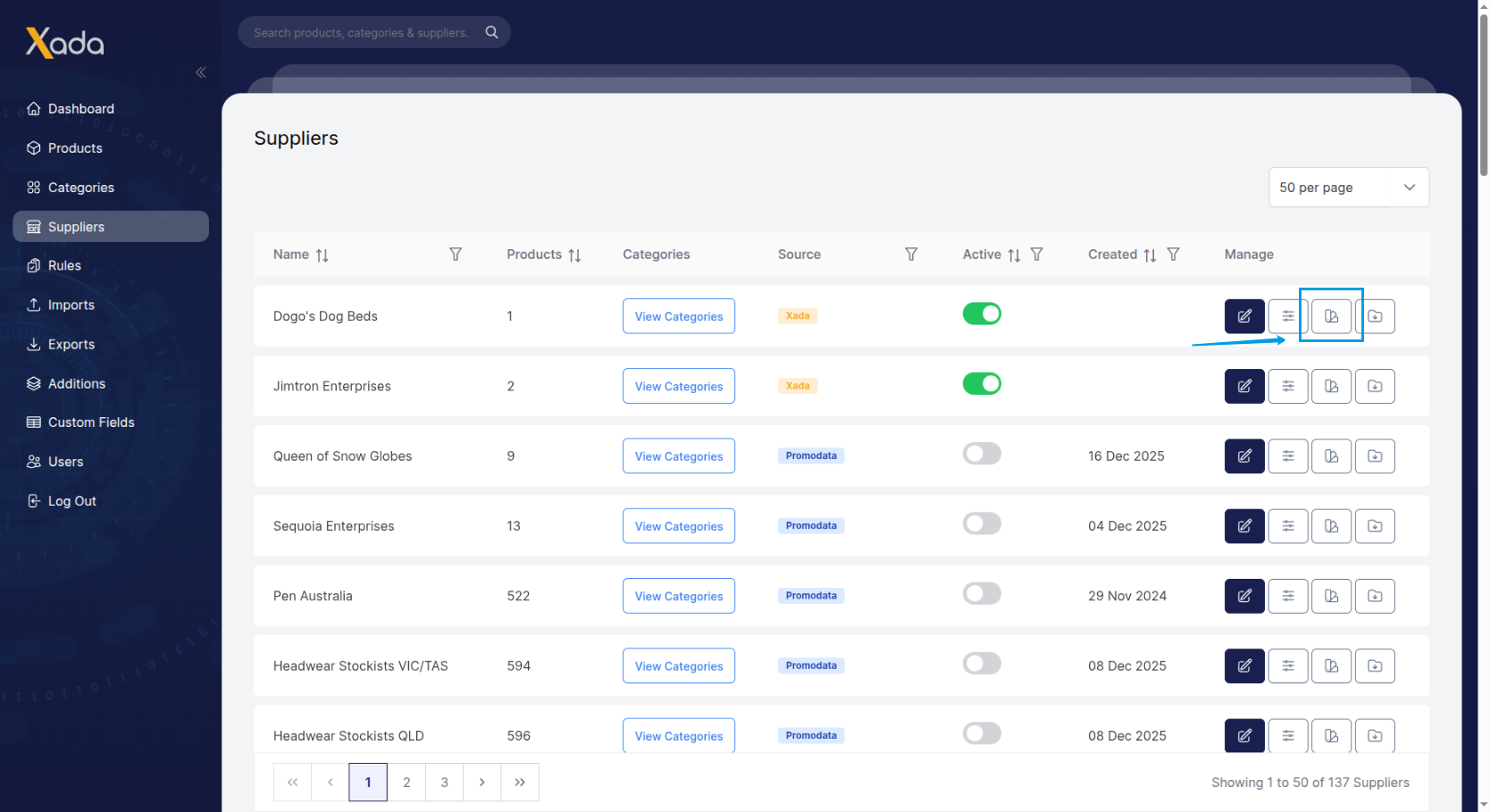
- Go to the Suppliers tab.
- Locate the supplier you want to work with
- Click the Colours & Variants button (third button in the Manage column)
- Export/Download the CSV file
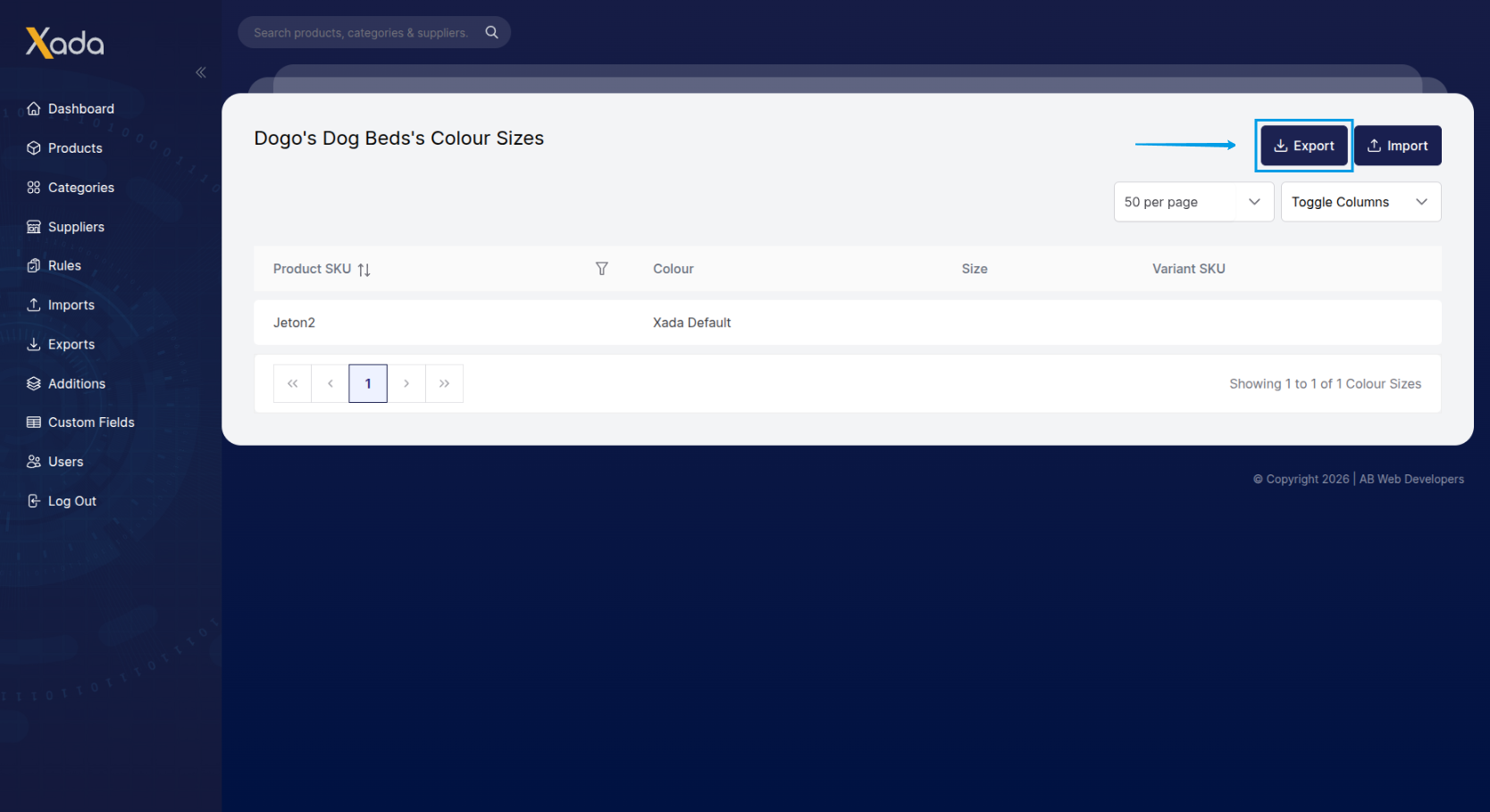
Step 2: Update the CSV with New SKUs
- Open the downloaded CSV file
- Locate the New Variant SKU column
- Enter the new SKU for each variant you want to update
- Save the file with your changes
Important Note:
- Each variant SKU must be unique across all products
- Only populate the New Variant SKU column for variants you want to change
- Leave the field blank to keep the existing SKU unchanged
Step 3: Re-import the CSV
- Go back to the Suppliers tab
- Locate the same supplier whos product variants CSV you exported
- Click the Colours & Variants button (third button in the Manage column)
- Import your newly updated CSV file
This process allows you to efficiently manage variant SKUs without needing to edit each product manually.