
Assigning Categories Using Rules
Xada rules allow you to automatically assign products to categories based on defined conditions such as product name, supplier, attributes, or existing category assignments.
This removes the need for manual categorisation and ensures that new products are consistently organised as they are imported from your supplier feeds.
When to Use Category Assignment Rules
Use category assignment rules when you need to:
- Automatically assign products to one or more categories
- Organise products based on keywords in the product name
- Move products from one category to another
- Ensure newly imported products are categorised correctly
- Reduce manual category management across large catalogues
Each category assignment should be handled by one rule per category to keep logic clear and easy to manage.
Creating a Category Assignment Rule
- Click Rules in the left-hand side navigation panel.
- Click Create New Rule.
-
Enter a clear and descriptive rule name.
Example: Chefs Pants Category
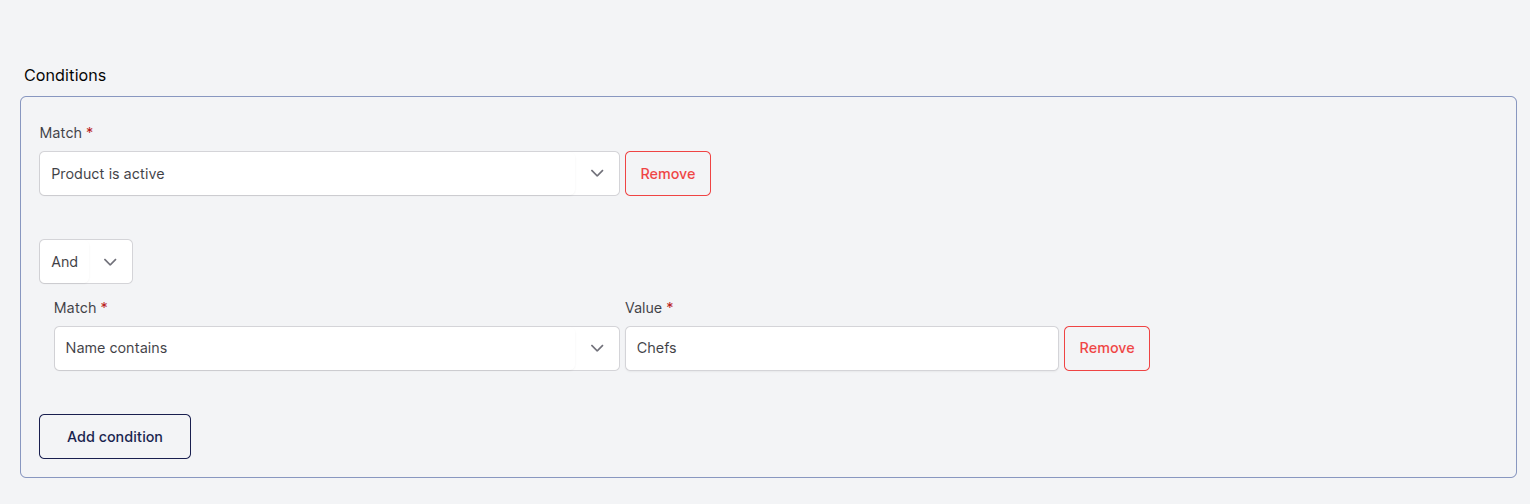
Add Conditions
Conditions determine which products the rule applies to.
Common conditions:
- Product is active
- Name contains a keyword
- Supplier is any of these
- Category is any of these
- Product has a specific attribute or custom field
Example:
- Product is active
- AND Name contains “Chefs”
This ensures only active products with “Chefs” in the name are selected.
Add Actions
Actions define what happens to the matched products.
Assigning a Category
- Action: Assign Category
- Category: Apparel / Bottoms / Chefs Pants
This assigns all matched products to the selected category.

Moving Products Between Categories
To move products from one category to another, use two actions:
- Assign Category = New category
- Unassign Category = Old category
This is useful when restructuring your category hierarchy.
Save and Run the Rule
- Click Create to save the rule
- After saving, click the green arrow and select Update & Run
This will execute the rule and apply the categories to all matching products.
Verify the Results
- The Products Matched section shows which products the rule applies to
- Click the Edit button on a product to confirm the categories has been assigned
Tips for Safe Rule Management
- Always test rules while inactive
- Use clear and descriptive rule names
- Add a Product is active condition to improve performance
- Keep one rule per category for easier maintenance
- Duplicate existing rules to save time when creating similar logic